Get up and running quickly by following the steps below. This guide walks you through creating your account, verifying your email, and logging in for the first time.
TIP — Before you begin: Make sure you have access to the email address you intend to register with. You will need it to verify your account.
1. Visit the Registration Page
Navigate to the platform's sign-up page. You can find the registration link on the homepage or in a direct invitation email sent by your organisation administrator.
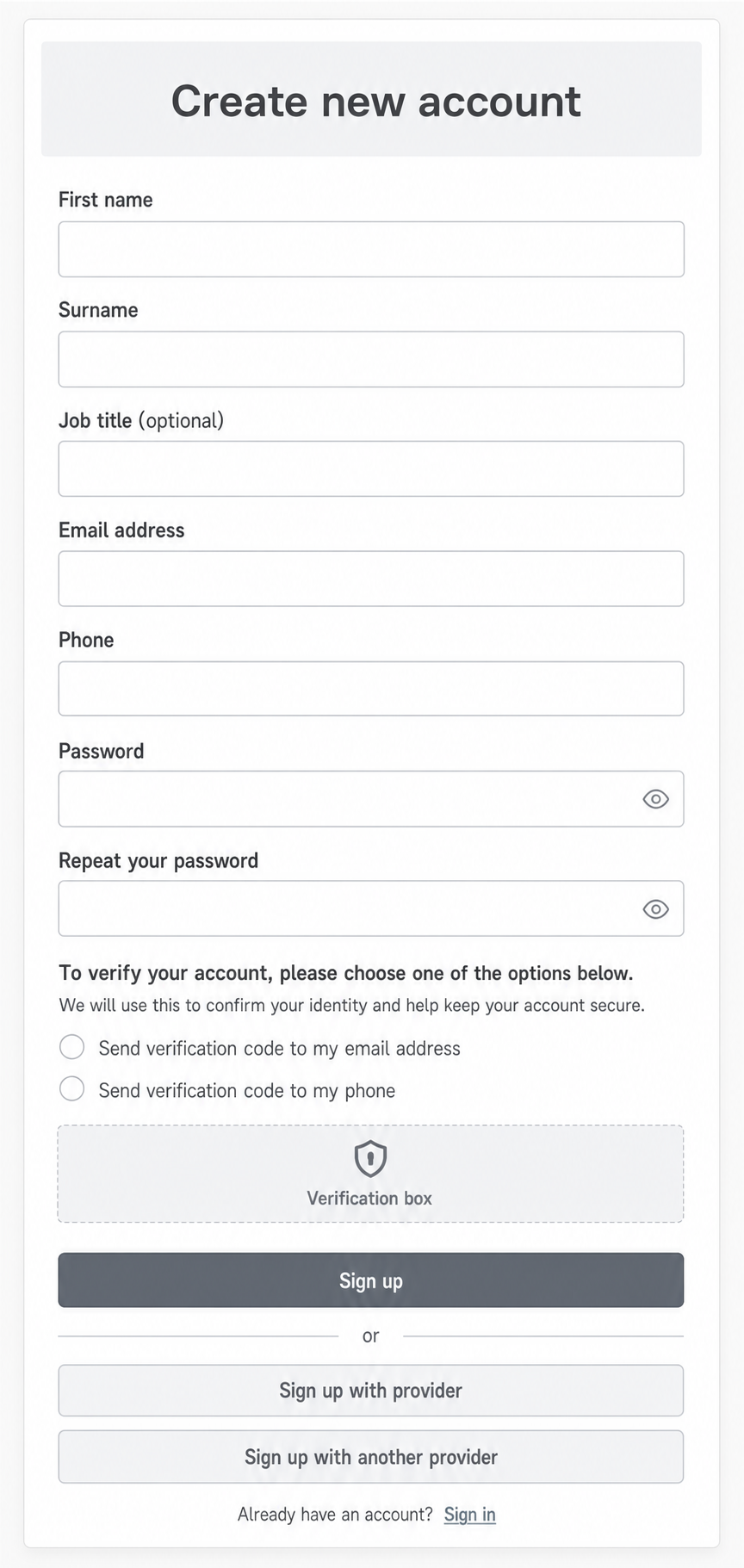
2. Fill In Your Details
Complete the registration form with the following information:
- Full name
- Email address (use your work or organisation email)
- Password — minimum 8 characters, including at least one uppercase letter and one number
Once completed, click the Sign Up or Register button.
Screenshot placeholder: Completed registration form
3. Verify Your Email Address
After submitting the form, a verification email will be sent to the address you provided. Open the email and click the Verify My Email or Activate Account button.
NOTE — If you do not see the email within a few minutes, check your spam or junk folder before requesting a resend.
Screenshot placeholder: Verification email with activation button highlighted
4. Set Up Your Profile
Once your email is verified, you will be prompted to complete your profile. Add any additional details required by your organisation — such as job title or department — then click Save or Continue.
Screenshot placeholder: Profile setup screen
5. Log In to Your Account
Return to the login page and enter your registered email address and password. Click Log In to access your dashboard.
Screenshot placeholder: Login screen
Troubleshooting
- Did not receive the verification email? Click Resend Verification Email on the login page.
- Forgot your password? Use the Forgot Password link on the login screen to reset it.
- Account locked? Contact your organisation administrator or our support team for assistance.
Was this article helpful?
That’s Great!
Thank you for your feedback
Sorry! We couldn't be helpful
Thank you for your feedback
Feedback sent
We appreciate your effort and will try to fix the article